
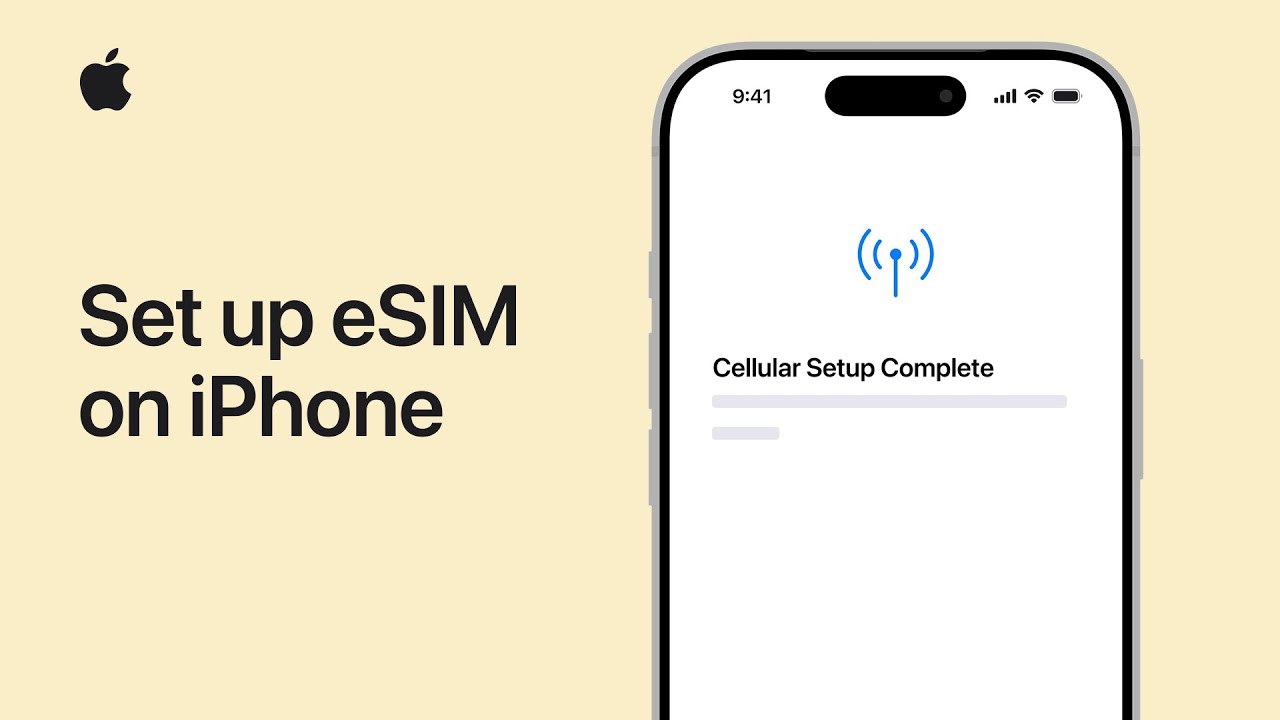
How to Activate eSIM on iPhone: Complete Guide
With the rise of eSIM technology, activating a mobile network on your iPhone has never been easier. This guide will walk you through the steps to activate eSIM on your device, allowing you to enjoy seamless connectivity, whether you are traveling or at home.
What is eSIM?
An embedded SIM (eSIM) is a digital version of a traditional SIM card. eSIMs are built into devices and allow users to switch networks without needing a physical SIM card. This technology is especially beneficial for frequent travelers and those who frequently change their mobile plans.
Devices Compatible with eSIM
Before activating an eSIM, it’s essential to ensure that your iPhone model supports eSIM technology. The following iPhone models are compatible:
- iPhone XR
- iPhone XS
- iPhone XS Max
- iPhone 11
- iPhone 11 Pro
- iPhone 11 Pro Max
- iPhone SE (2nd generation)
- iPhone 12 lineup
- iPhone 13 lineup
- iPhone 14 lineup
Step-by-Step Guide to Activate eSIM
Now that you know your device is compatible, you can follow these simple steps to activate your eSIM:
Step 1: Get Your eSIM Activation Information
Before you begin, ensure you have your eSIM activation information handy. This usually comes in the form of a QR code or an activation code from your network provider.
Step 2: Open Settings on Your iPhone
Navigate to the Settings app on your iPhone and tap on Cellular.
Step 3: Add Cellular Plan
Tap on Add Cellular Plan. Your iPhone will prompt you to scan a QR code if your provider supplied one. Alternatively, you can enter the activation code manually.
Step 4: Follow the On-Screen Instructions
Once you scan the QR code or enter the details, follow the on-screen instructions to complete the activation. Make sure to select your default line if you’re using dual SIMs.
Step 5: Enable Your eSIM
After activation, ensure that your eSIM is enabled. You can check this by going back to Cellular settings and seeing if your cellular plan is activated.
Troubleshooting Common Issues
If you encounter issues during activation, here are some troubleshooting tips:
- Make sure you have a stable Wi-Fi connection during activation.
- Verify that your iPhone is compatible with the eSIM technology.
- Check with your network provider for the correct activation information.
- Restart your iPhone if the activation does not complete.
Conclusion
Activating eSIM on your iPhone is a straightforward process that can enhance your mobile experience. With the steps provided in this guide, you can quickly get connected to your chosen network, enjoying the flexibility and convenience that eSIM technology offers. Whether you are traveling or simply looking to switch plans, eSIM is the future of mobile connectivity.